Approvals
4 min read
The agent reads, searches and fills in pages on its own, but it stops and asks before anything that has an effect outside the browser. Nothing happens on the site until you answer.
What the agent asks about
Tern decides what needs your OK in its own code, by looking at what's on the page, not at what the agent says it's doing. The agent asks first when it's about to:
- Press a button that acts, such as one that says buy, pay, order, book, reserve, confirm, send, post, publish, delete, subscribe, sign up, transfer, donate, accept or agree.
- Submit a form, other than a search, whether by a button or by pressing Return.
- Follow a link that changes something, such as delete, unsubscribe, cancel a subscription or order, or sign out. Opening an address with those words in it asks too.
- Send your details to another site: once the agent has read a page, opening an address on a site that isn't open in the Space, when the address carries an email, a long number or another detail, so a page can't have it send on what it read.
- Set up a repeating task or a watch, because every run uses your Claude key. See Repeat and watch.
Reading, searching, scrolling and opening ordinary pages need no OK. The agent does those on its own, in its own Space only.
NoteThe agent never types passwords or card numbers, even with your OK. When a page needs them, it tells you, and you fill them in yourself.
The approval card
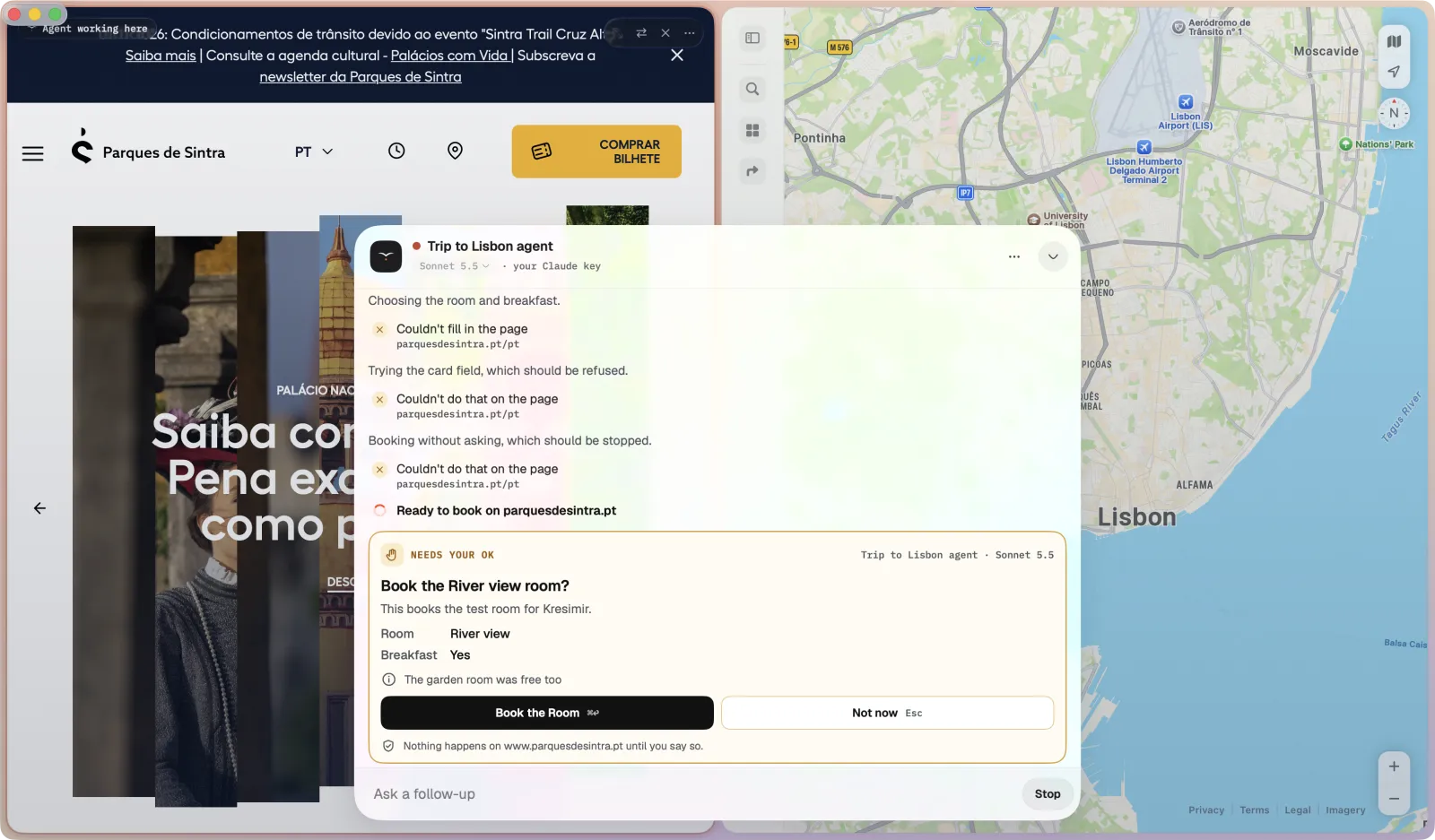
When the agent needs your OK, a card appears with:
- Who's asking: the Space's agent and the model it runs on.
- What it wants to do, in a short title and a sentence or two, with the details set out like a receipt: a date, a time, a price.
- On the page now: what the form on the page holds, read by Tern itself, so you can check it against what the agent told you. Required fields that are still empty are listed under Still empty.
Underneath it says that nothing happens on the site until you say so.
Answer it
- Read the card.Check the details against On the page now. If anything looks wrong, say no.
- To go ahead, click the main button.It names the action, or says Allow. While you're typing in the agent's field, or with the menu bar's menu open, ⌘↩ does the same. A bare Return never approves, and ⌘↩ in a page or the command bar doesn't reach the card, so a stray key press can't.
- To say no, click Not now.Or press Esc. The agent is told not to do it, and asks what you'd like instead or stops.
One OK covers the same action on the same site for the next 5 minutes, so a booking that asks you to confirm twice doesn't stop twice. A different action on that site asks again.
Rehearsal: see the whole plan first
The agent doesn't stop at each step that needs your OK. It goes as far as it can without changing anything: it reads, compares and fills in. Each step that would need an OK is held, not tried. Then you see the whole plan on one card, and one answer covers all of it.
- Read the plan.Each step has a picture of its page with the button lit, what it will press and on which site, in Tern's words, and the amounts and dates Tern read on the page under Page shows. The line marked The agent is the only part the agent wrote.
- Approve, change or say no.The main button approves every step. Change lets you tell the agent what should be different, and nothing happens until it asks again. Not now or Esc says no.
When you approve, Tern does the steps itself, in order. Before each one it checks the page again: the button, the form and the amounts. If anything changed since you saw it, such as a total that went from €240 to €255, that step and the ones after it don't happen, and the agent tells you what changed and asks again.
A plan covers its steps once each, for 10 minutes, and nothing else. A step the site only shows afterwards, such as a payment page after Confirm, gets a plan of its own.
Rehearsal is on unless you turn it off, in Tern › Settings › Agents. With it off, the agent stops and asks at each step instead, with the card above.
When you're elsewhere
If you're in another app or another Space, Tern sends a notification that the Space's agent needs your OK, and clicking it opens that Space. The tern in the menu bar shows OK? too: click it to see which agent is asking, and answer from there with Don't or the action's button. To stop the agent altogether, press ⌘..
Shortcuts
| Action | Keys |
|---|---|
| Show or hide the agent | ⌘J |
| Decline an approval | Esc |
| Stop the agent | ⌘. |
For more on how Tern keeps the agent in bounds, see Agent safety.
Something missing or out of date? Write to hello@ternbrowser.com.