Lay out a Desk
4 min read
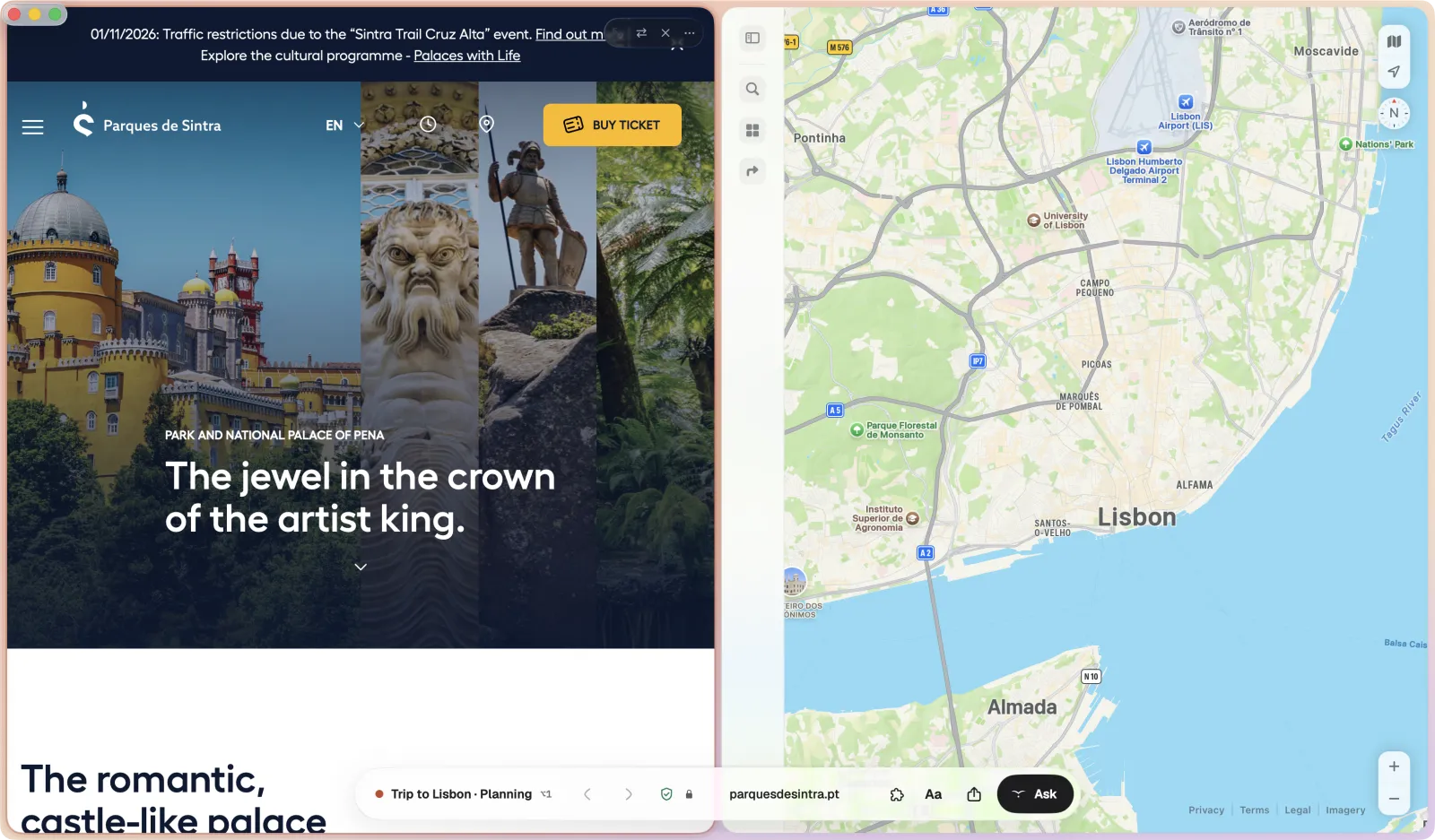
A Desk puts the pages you use together side by side, in one view you can come back to. Your inbox, your calendar and this week's issues, open at once, exactly where you left them.
What a Desk is
A Desk is a saved layout of two, three or four pages, each in its own pane. Desks live inside a Space, so your Work Space can have a Morning Desk for mail and calendar, and a Review Desk for a pull request beside its preview.
You'll find every Desk on the shelf under Desks: move the pointer to the left edge of the window and the shelf comes out, with each Desk's shortcut on the right. Press ⌘↑ for the Room, where the Space's Desks sit on the table beside today's pages. While a Desk is open, the horizon at the bottom names it.
Older versions of this article sent you to the sidebar. Tern no longer has one. Desks now live on the shelf and in the Room, and the horizon replaces the address capsule.
Make a Desk
The quickest way is to put two pages side by side, then save them.
- Open the first page. Choose the page you want to start from, in the Space where the Desk should live.
- Bring a second page beside it. Press ⌃⇥ and today's pages grow up out of the horizon. Drag one up onto the page and let go on Beside, or on Below. The two pages are side by side.
- Add more panes if you need them. Press ⌘\ to split with a new pane, up to four. ⌃⌘2, ⌃⌘3 and ⌃⌘4 switch between the Two, Three and Grid layouts.
- Save it as a Desk. Press ⌥⌘S, or choose Save as Desk. The Desk appears on the shelf under Desks and in the Room, and you can rename it whenever you like.
Prefer to start from an empty Desk? Click the + beside Desks on the shelf and choose New Desk….
Resize and rearrange panes
- Resize by dragging the divider between two panes.
- Swap two pages by dragging a pane's strip, the slim bar at the top with the page's name, onto another pane.
- Focus on one page with ⇧⌘↩, which shows the focused pane only.
- End the split with ⇧⌘\.
Switch Desks
Press ⌥1to⌥9 to open the first nine Desks in the current Space, or click a Desk on the shelf or in the Room. Each pane opens where you left it.
To see every Space, Desk and page at once, press ⇧⌘O for Overview. Click any Desk to open it.
Rename a Desk
Right click a Desk on the shelf, choose Rename and type a new name. Short names work best: Morning, Review, Writing.
A Desk remembers
Tern saves a Desk as you work: which pages are open and how far you'd scrolled in each pane. Close the window, restart your Mac, come back next week. The Desk is as you left it.
It also keeps a history. Press ⌥⌘Y for Desk History to see how the Desk looked before. You can open any page from it, or restore the whole Desk.
Share a Desk
Share Desk sends a Desk as a link. Whoever opens the link in Tern gets the same pages, signed in as themselves.
- Open the Desk and choose Share Desk. Tern makes a link to the Desk.
- Send the link. Paste it into a message, an email or a chat, however you like.
- They open it in Tern. The same pages open on their Mac, in a Desk of their own.
Shortcuts for Desks
See every shortcut in Keyboard shortcuts.
Something missing or out of date? Write to hello@ternbrowser.com.